


Game Audio Player (GAP)
Game Audio Player v1.32 Documentation 10-03-2001
============================================================================
Copyright © 1999-2001 ANX Software
Table of Contents
==================
1 Introduction to GAP
2 Disclaimer
3 GAP files
4 GAP actions:
4.1 Main (playback) window
4.2 Playlist window
4.3 Keyboard shortcuts
4.4 Resource file extraction capabilities
5 Options:
5.1 Playback
5.2 Playlist
5.3 Saving
5.4 Audio file plug-ins (AF plug-ins)
5.5 Resource file plug-ins (RF plug-ins)
6 Audio file plug-ins configurations:
6.1 ACM plug-in configuration
6.2 ASF plug-in configuration
6.3 AUD plug-in configuration
6.4 RAW plug-in configuration
6.5 SOL plug-in configuration
6.6 EACS plug-in configuration
6.7 WADSFX plug-in configuration
6.8 MVE plug-in configuration
6.9 BNK plug-in configuration
6.10 APC plug-in configuration
6.11 ISS plug-in configuration
6.12 XA plug-in configuration
6.13 CMP plug-in configuration
6.14 FST plug-in configuration
6.15 MGI plug-in configuration
7 Resource file plug-ins configurations:
7.1 MPQ plug-in configuration
7.2 WAD plug-in configuration
7.3 DSND plug-in configuration
7.4 GRP plug-in configuration
7.5 BLB plug-in configuration
7.6 CLU plug-in configuration
8 Credits
9 Known problems
10 Future plans
11 Project
12 Support the author of GAP
13 Appendix: ANX APL playlist format
1 Introduction to GAP
======================
Game Audio Player (GAP) is an utility capable of...
1) Searching various games resource files for various audio files (music/sfx/speech)
2) Extracting found files "as is" and converting them to WAVs
3) Playing found/added files with seeking and other features
4) Extracting any files from various resource archives
Features supported include...
1) Plug-in system: plug-ins for audio files and resource files
2) Playlist functionality: remove node(s), duplicate node, move up/down,
clear, multiselect, add/scan directory, sort list
3) Saving/Converting multiple files at once using filename template
4) Game oriented playlist: options for loading/saving playlists so that they can
be used on systems with different CD drive letters
5) Playback options: repeat one/all, shuffle, introscan, single-file playback
6) Drag'n'Drop support for main (playback) and playlist windows
GAP and all ANX plug-ins are Copyright © 1998-2001 ANX Software:
WWW: http://www.anxsoft.newmail.ru
E-mail: anxsoftware@avn.mccme.ru
Official GAP site is:
WWW: http://bim.km.ru
E-mail: Ilya_BIM
GAP and its plug-ins may also be found on the Internet:
http://www.fortunecity.com/campus/electr...amael.html,
http://anx.da.ru (which is just the same as previous),
http://denver.da.ru,
GAP is completely FREEWARE.
2 DISCLAIMER
=============
This software comes with NO WARRANTY. You use it at YOUR OWN RISK.
The author of this software may not be kept responsible for any damage
caused by any usage of this software.
This software is meant only as an addition to the wonderful games whose
sound/music/speech/video files it deals with. It's NOT meant to lower those
games value IN ANY WAY. The creators of the supported games ARE NOT
RESPONSIBLE for this software and they should not be contacted in case of
any problems related to this software.
3 GAP files
============
GAP.ZIP package includes the following files...
GAP.EXE -- Game Audio Player Win32 Executable
GAP.TXT -- This document (main GAP documentation)
GAP-Games.TXT -- The list of supported games
GAP-History.TXT -- History of GAP development
PLUGINS\AF_ACM.DLL -- ANX ACM Audio File Plug-In
PLUGINS\AF_ASF.DLL -- ANX ASF Audio File Plug-In
PLUGINS\AF_APC.DLL -- ANX APC Audio File Plug-In
PLUGINS\AF_BLBSFX.DLL -- ANX BLBSFX Audio File Plug-In
PLUGINS\AF_CLUSFX.DLL -- ANX CLUSFX Audio File Plug-In
PLUGINS\AF_CMP.DLL -- ANX CMP Audio File Plug-In
PLUGINS\AF_FST.DLL -- ANX FST Audio File Plug-In
PLUGINS\AF_AUD.DLL -- ANX AUD Audio File Plug-In
PLUGINS\AF_EACS.DLL -- ANX EACS Audio File Plug-In
PLUGINS\AF_MGI.DLL -- ANX MGI Audio File Plug-In
PLUGINS\AF_MVE.DLL -- ANX MVE Audio File Plug-In
PLUGINS\AF_BNK.DLL -- ANX BNK Audio File Plug-In
PLUGINS\AF_ISS.DLL -- ANX ISS Audio File Plug-In
PLUGINS\AF_RAW.DLL -- ANX RAW Audio File Plug-In
PLUGINS\AF_SOL.DLL -- ANX SOL Audio File Plug-In
PLUGINS\AF_VOC.DLL -- ANX VOC Audio File Plug-In
PLUGINS\AF_WAV.DLL -- ANX WAV Audio File Plug-In
PLUGINS\AF_WADSFX.DLL -- ANX WADSFX Audio File Plug-In
PLUGINS\AF_XA.DLL -- ANX XA Audio File Plug-In
PLUGINS\RF_PLAIN.DLL -- ANX Plain Resource File Plug-In
PLUGINS\RF_MPQl.DLL -- ANX MPQ Resource File Plug-In
PLUGINS\RF_BLB.DLL -- ANX BLB Resource File Plug-In
PLUGINS\RF_CLU.DLL -- ANX CLU Resource File Plug-In
PLUGINS\RF_WAD.DLL -- ANX WAD Resource File Plug-In
PLUGINS\RF_DSND.DLL -- ANX DSND Resource File Plug-In
PLUGINS\STORM.DLL -- StarCraft STORM library (used by RF_MPQl.DLL)
The following DLLs should be put either into GAP's directory or into
WINDOWS\SYSTEM directory:
ACMStream.DLL -- ACM Decompression Engine (used by AF_ACM.DLL)
PKWARE.DLL -- PKWARE decompression DLL (used by RF_BLB.DLL)
MSVCRT.DLL -- MS Visual C Runtime Library (version 5.00 or later)
MPQ Archives Filelists:
PLUGINS\MPQLists\Diablo.TXT -- Diablo file list
PLUGINS\MPQLists\HellFire.TXT -- HellFire file list
PLUGINS\MPQLists\StarCraft.TXT -- StarCraft file list
PLUGINS\MPQLists\BroodWar.TXT -- BroodWar file list
PLUGINS\MPQLists\WarCraft2BNE.TXT -- WarCraft II: Battle.net Edition file list
PLUGINS\MPQLists\Diablo2char.TXT -- Diablo 2 file list (for d2char.mpq)
PLUGINS\MPQLists\Diablo2data.TXT -- Diablo 2 file list (for d2data.mpq)
PLUGINS\MPQLists\Diablo2music.TXT -- Diablo 2 file list (for d2music.mpq)
PLUGINS\MPQLists\Diablo2sfx.TXT -- Diablo 2 file list (for d2sfx.mpq)
PLUGINS\MPQLists\Diablo2speech.TXT -- Diablo 2 file list (for d2speech.mpq)
PLUGINS\MPQLists\Diablo2video.TXT -- Diablo 2 file list (for d2video.mpq)
4 GAP actions
==============
The following subsections describe the GAP actions which may be performed
using the controls in the GAP windows.
4.1 Main (playback) window
===========================
Playback buttons:
PLAY/PAUSE (depending on playback state) -- starts/pauses playback,
STOP -- stops playback,
PREVIOUS -- plays or goes to the previous file in the current playlist,
NEXT -- plays or goes to the next file in the current playlist.
NOTE: Playback trackbar allows you to seek to a position in the played file
only if the correspondent audio file plug-in supports seek function.
If it does not support seeking, the trackbar will be disabled (its
slider will be grayed).
Other buttons:
PLAYLIST -- opens/closes playlist window.
EQUALIZER -- in this version of GAP equalizer is not implemented.
OPTIONS -- brings up options dialog.
INFO -- brings up info dialog.
In the bottom of GAP main window there're current GAP stats:
GAP state: Idle/Playing/Paused <file number>/<number of files>,
Current playback time (elapsed/remaining),
Current audio file type,
Current resource file type.
Right-click on the main window to bring up main pop-up menu:
Always On Top -- makes GAP windows be topmost (that is, always above
all non-topmost ones).
Easy Move -- enables easy movement of GAP main and playback windows which
means that those windows may be moved using any point in the window area
not occupied by any controls.
No Playlist Advance -- just the opposite to "Play next file in playlist"
option in Options dialog.
4.2 Playlist window
====================
Double-clicking on the file in the playlist will start playback of the file.
Clicking on the selected file will start editing name for the file.
Clicking on listview column header sorts the list by the header parameter.
NOTE: You can select multiple files in the playlist using SHIFT and CTRL.
NOTE: Some playlist buttons will be disabled (grayed) if their actions are
not relevant with the selected files in the playlist.
OK -- closes playlist.
LOAD LIST(S)... -- loads APL playlist.
NOTE: You can select multiple playlist files in the playlist loading dialog:
press SHIFT and CTRL to use that feature.
SAVE LIST... -- saves APL playlist.
WARNING: Do not try to load files which does not have APL playlist structure.
To produce APL playlist files, use ADD FILES/SCAN FILES and then
SAVE LIST. If you want to produce APLs manually, refer to the APL
format description in the Appendix.
ADD FILE(S)... -- adds files to playlist: select any game files and GAP will
check whether they are in any of the supported format. As games often use
various file extensions for audio files, there's no common rule for files to
try adding. Just try all and see if it works. If not, mail me! If yes, mail
me anyway!
NOTE: Some audio files could not be verified. For such files the correspondent
plug-in may ask user to specify their parameters. Such behaviour of the
plug-in is configurable (see Options->AF Plug-Ins->Configuration).
If asked, you may select different settings and check the result.
For some audio files it's the only way to determine their parameters.
NOTE: Some resource file plug-ins may also ask user to enter information
necessary for dealing with resource archives. These plug-ins are also
configurable (see Options->RF Plug-Ins->Configuration).
ADD DIRECTORY... -- lets you add files from the directory of your choice.
NOTE: Directory browsing dialog lets you enable or disable recursing of chosen
directory subdirectories.
SCAN FILE(S)... -- selects files to search for supported audio files within.
Same as for ADD FILE(S) button: try to search in all game files.
NOTE: When you select files for ADD or SCAN, GAP checks them all whether they
are resource library of any supported format. If a file is a resource
library, added/searched are the files found in it via the correspondent
resource file plug-in.
NOTE: You can select multiple files in the adding and searching dialogs:
press SHIFT and CTRL to use that feature (or select multiple files
by dragging mouse cursor over them).
SCAN DIRECTORY... -- lets you scan files from the directory of your choice.
NOTE: Directory browsing dialog lets you enable or disable recursing of chosen
directory subdirectories.
PLAY -- plays currently selected audio file.
SAVE FILE(S)... -- saves currently selected audio file(s) "as is". If multiple
files are selected, the saving depends on the saving settings (Saving tab in
Options dialog).
CONVERT FILE(S)... -- converts currently selected audio file(s) to WAV(s). If
multiple files are selected, the saving depends on the saving settings
(Saving tab in Options dialog).
NOTE: Both filename template (for MultiConverting) and ConvertFileName dialogs
let you select WAV format (compression) for converting to WAV. Some formats
may turn out to be not suitable for converting to. GAP will bring up error
message if such format is chosen.
CLEAR LIST -- clears the playlist.
MOVE UP/DOWN -- moves up/down audio file in playlist.
REMOVE -- removes currently selected file(s) from playlist.
DUPLICATE -- duplicates currently selected file.
SELECT... -- brings up playlist selection pop-up menu.
SORT LIST... -- brings up playlist sorting pop-up menu.
FILE INFO -- displays currently selected audio file info box.
FILE TITLE -- lets you change name for currently selected file: this may differ
from the name of file this audio is stored in. For audio found
by SCAN operation, the initial name is <Unknown>. For those added by ADD
operation, the initial name is the correspondent filename.
Right-click on the playlist window to bring up main popup menu or playlist
node context menu.
4.3 Keyboard shortcuts
=======================
General shortcuts (may be used in both main and playlist windows):
Z or Keypad 5 -- Play/Pause,
X -- Stop,
C or LeftArrow/Keypad 4 -- Previous,
V or RightArrow/Keypad 6 -- Next,
Alt+F4 -- Quit,
Ctrl+P -- Toggle playlist window,
Ctrl+E -- Toggle equalizer window,
Ctrl+O -- Options dialog,
Ctrl+R -- Toggle time elapsed/remaining,
F1 -- GAP Info dialog,
Ctrl+I -- Current audio file info box,
Ctrl+T -- Toggle always on top,
Ctrl+M -- Toggle easy move,
Ctrl+A -- Add file(s),
Ctrl+F -- Scan file(s),
Ctrl+L or Insert/Keypad 0 -- Load playlist(s),
D -- Toggle no playlist advance,
S -- Toggle shuffle,
I -- Toggle introscan,
O -- Set repeat one mode,
R -- Set repeat all mode.
Playlist window shortcuts:
Enter or Keypad Enter -- Play currently selected file,
Delete or Keypad Delete -- Remove currently selected file(s),
Alt+K -- Close playlist,
Alt+L -- Load playlist(s),
Alt+S -- Save current playlist,
Alt+A -- Add file(s),
Alt+Y -- Add files from directory,
Alt+F -- Scan file(s),
Alt+X -- Scan files from directory,
Alt+P -- Play currently selected file,
Alt+V -- Save/extract currently selected file(s) "as is",
Alt+O -- Convert currently selected file(s) to WAV(s),
Alt+C -- Clear playlist,
Alt+U -- Move up currently selected file in playlist,
alt+W -- Move down currently selected file in playlist,
Alt+R -- Remove currently selected file(s),
Alt+D -- Duplicate file in playlist,
Alt+I -- File info,
Alt+T -- Edit/enter title for currently selected file,
Alt+E -- Bring up playlist selection pop-up menu,
Ctrl+S -- Bring up playlist sorting pop-up menu.
4.4 Resource file extraction capabilities
==========================================
If the GAP installation contains RAW plug-in, it's possible to use GAP as
a resource extraction tool. Namely, you can extract any file (or group of
any files) from any resource archive supported by GAP via RF plug-ins. To
be able to do that you should change RAW plug-in options:
(Options -> AF Plug-Ins -> ANX RAW Audio File Plug-in -> Configure)
ADD FILES -> Always,
RAW PARAMETERS -> Use defaults.
Press OK to confirm the changes and then you should use ADD FILES for resource
file(s) you want to extract anything from. Depending on the type of resource
file(s) and the options of correspondent RF plug-in(s), you'll either be able
to select file|(s) in the file selection dialog box or just get all files from
the resource file(s) added to the playlist. Now you can select file(s) to
extract in the playlist (or just select all files using SELECT ALL button) and
press SAVE FILE(S) button. Using such technique you may extract file(s) from
the supported resource file(s) even if the files you want to extract are not
audio files supported by GAP (via AF plug-ins). It's possible due to the
ability of RAW plug-in to confirm adding of any file (as the reasonable
verification of RAW files is not possible).
Also, it's possible to create AF plug-in(s) which would support scanning/adding
for non-audio files (graphics, video, script and any other types of data files
stored in resource files), but would not support the playback for those files
(that is, the playback support functions are "fake" ones). Such AF plug-ins
would allow GAP to find/add almost any type of files stored in resource files,
thus, enabling you to find/rip/extract those files from resource files.
5 Options
==========
The following subsections describe the GAP settings which may be set in
the property pages of the options dialog.
5.1 Playback
=============
WAVEOUT DEVICE -- lets you select waveform playback device.
PROCESS PRIORITY CLASS -- sets GAP process priority class.
PLAYBACK BUFFER -- sets playback buffers size.
GAP PRIORITY -- sets GAP main thread priority.
PLAYBACK PRIORITY -- sets GAP playback thread priority.
NOTE: Priority class and thread priorities may be set to higher values,
if you have audio playback latencies. But the defaults
("Normal" for all) is recommended. Too high values may
negatively affect other applicattions, while too low values
may negatively affect GAP.
DEFAULTS -- sets default values for all options (RECOMMENDED!).
5.2 Playlist
=============
PLAYLIST TYPE -- sets the type of playlist:
FIXED-SIZE DIALOG (OLD) -- playlist is fixed-size dialog (older variant),
RESIZEABLE WINDOW (NEW) -- playlist is resizeable window (newer variant).
PLAY NEXT FILE IN PLAYLIST -- if checked, the next file in the playlist is
played after current playback finishes. Otherwise playback stops after that.
INTROSCAN -- sets introscan mode and introscan length in seconds.
SHUFFLE -- sets shuffle mode.
REPEAT/ONE/ALL -- sets repeat mode: repeat one file, repeat whole playlist.
LOAD LAST PLAYLIST ON STARTUP -- allows autoloading last playlist during GAP
startup.
PLAY LOADED PLAYLIST ON STARTUP -- allows autoplayback of autoloaded last
playlist just after GAP startup.
ESTIMATE TIME ONLY BEFORE PLAYBACK -- instructs GAP to estimate audio
file length only before playback. Otherwise it tries to do that during
playlist loading, adding audio files to playlist and before playback.
Setting this option is recommended because estimating length for some
audio files when loading playlist may take some time and may be very
annoying.
WHEN LOADING PLAYLIST REPLACE [CD] WITH... -- allows replacing of [CD] string
in the resource filename with CD drive letter of your choice and sets that CD
drive letter.
WHEN SAVING PLAYLIST PUT [CD] FOR CD DRIVE LETTER -- allows replacing of CD
drive letter in the resource filename for files situated on CD with [CD]
string so that saved APL will be usable on systems with other CD drive letter
than that of the system it was saved on.
DRAG & DROP SUPPORT -- sets the support for Drag'n'Drop:
NONE -- no support,
ASK USER ON DROP -- ask user what to do with dropped files,
ADD DROPPED FILES TO PLAYLIST -- when files are dropped over the main or
playlist window, they're added to playlist,
SCAN DROPPED FILES -- when files are dropped over the main or playlist
window, they're scanned for audio files which are then added to playlist,
LOAD DROPPED FILES AS PLAYLISTS -- when files are dropped over the main
or playlist window, they're loaded as APL playlists.
DEFAULTS -- sets default values for all options (RECOMMENDED!).
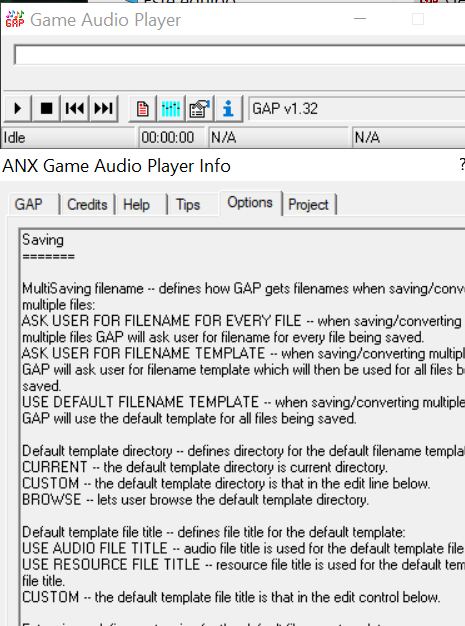
5.3 Saving
===========
MultiSaving filename -- defines how GAP gets filenames when saving/converting
multiple files:
ASK USER FOR FILENAME FOR EVERY FILE -- when saving/converting multiple files
GAP will ask user for filename for every file being saved.
ASK USER FOR FILENAME TEMPLATE -- when saving/converting multiple files GAP
will ask user for filename template which will then be used for all files
being saved.
USE DEFAULT FILENAME TEMPLATE -- when saving/converting multiple files GAP
will use the default template for all files being saved.
Default template directory -- defines directory for the default filename
template:
CURRENT -- the default template directory is current directory.
CUSTOM -- the default template directory is that in the edit line below.
BROWSE -- lets user browse the default template directory.
Default template file title -- defines file title for the default template:
USE AUDIO FILE TITLE -- audio file title is used for the default template
file title.
USE RESOURCE FILE TITLE -- resource file title is used for the default
template file title.
CUSTOM -- the default template file title is that in the edit control below.
Extension -- defines extension for the default filename tamplate:
DEFAULT -- the default extension for saved file is used for the default
template filename extension.
CUSTOM -- the default filename template extension is that in the edit control
below. You can set it to single point "." to save to files with no extension.
MILTICONVERTING WAV FORMAT -- lets you select default WAV format (compression)
for MultiConverting. Listed in this control will be only WAV formats
supported in your system.
DEFAULTS -- sets default settings.
5.4 Audio file plug-ins (AF plug-ins)
======================================
AUDIO FILE PLUG-IN DIRECTORY -- defines the directory in which GAP will
search for audio file plug-ins. When GAP is started for the first time,
it sets this to "<GAP directory>\Plugins". If you move GAP to other directory
or move plug-ins to the directory other than "Plugins", change this setting!
CONFIGURE -- calls configuration routine of the chosen plug-in.
NOTE: you can also double-click on plug-in description string in the plug-in
list to call its configuration routine.
ABOUT -- calls about routine of the chosen plug-in.
ALLOW MULTIPLE PLUG-INS TO WORK WITH ONE FILE -- allows multiple audio
plug-ins to try to add files (chosen to add), which may result in many
annoying RAW Parameters dialogs from RAW Plug-In, but it may be used if you
want some files to be added as being in different formats.
5.5 Resource file plug-ins (RF plug-ins)
=========================================
RESOURCE FILE PLUG-IN DIRECTORY -- defines the directory in which GAP will
search for resource file plug-ins. When GAP is started for the first time,
it sets this to "<GAP directory>\Plugins". If you move GAP to other directory
or move plug-ins to the directory other than "Plugins", change this setting!
CONFIGURE -- calls configuration routine of the chosen plug-in.
NOTE: you can also double-click on plug-in description string in the plug-in
list to call its configuration routine.
ABOUT -- calls about routine of the chosen plug-in.
ALLOW MULTIPLE PLUG-INS TO WORK WITH ONE FILE -- allows multiple resource
plug-ins to try to process files (chosen for adding/searching), which may
result in several addition checks or searches done by different resource file
plug-ins for one file, but it may be used if you want some resource files to
be searched as being in PLAIN format (i.e. make plain file search).
6 Audio file plug-ins configurations
=====================================
The following subsections describe audio file plug-ins configuration
options (for audio file plug-ins requiring configuration).
6.1 ACM plug-in configuration
==============================
DISABLE ACM SEARCH -- disables search (SCAN FILES) opportunity for ACMs.
ENABLE CHANNELS CHECK -- enables channels number check when verifying
added/found file. This's recommended.
ENABLE PACK ATTRIBUTES CHECK -- enables pack attributes check when verifying
added/found file. This's NOT recommended.
The above two options may be used in order to avoid finding fake (incorrect)
files.
ACM FILE SIZE -- controls the means plug-in uses to determine found ACM size:
ESTIMATE -- estimate ACM size using "size" ACM header field (fast, but VERY
inaccurate).
WALK THE WHOLE ACM -- walk the whole found ACM file to determine its size.
This's recommended setting.
ACM CHANNELS -- controls the behaviour of plug-in when determining the number
of channels for ACM file (which may be 1 or 2 (mono and stereo)):
USE HEADER VALUE -- plug-in will use channels number value, stored in ACM header.
TRY TO GUESS -- plug-in will try to determine channels number itself.
ASK USER -- plug-in will ask user to set channels number.
USE DEFAULT -- plug-in will use the default value for channels number.
NOTE: All music files in Fallout 1,2 are stereo while all sounds/speech are mono.
CHANNELS DEFAULT -- sets the default value for channels number:
MONO -- the default is mono (1 channel).
STEREO -- the default is stereo (2 channels).
DEFAULTS -- sets the default settings for all options.
6.2 ASF plug-in configuration
==============================
IGNORE ASF LOOP BLOCKS -- makes plug-in ignore ASF loop blocks, so that
looped songs are played once (without looping). Otherwise such songs are
played repeatedly.
WALK ASF BLOCKS CHAIN BEFORE PLAYBACK -- makes plug-in walk ASF blocks
chain when preparing for playback, so that seeking and looping will be
done fast. May take much time when starting playback.
CHECK SAMPLE RATE -- check sample rate header field of the file when verifying
added/found file.
CHECK CHANNELS NUMBER -- check channels number header field of the file when
verifying added/found file.
CHECK RESOLUTION -- check resolution header field of the file when verifying
added/found file.
The above three options are recommended in order to avoid finding fake
(incorrect) files.
USE SAMPLE CLIPPING FOR DECOMPRESSION -- makes plug-in use sample clipping
for IMA ADPCM data decompression. You may turn this setting on and off to
avoid "popping" in sound playback.
DEFAULTS -- sets the default settings for all options.
6.3 AUD plug-in configuration
==============================
USE "OUTSIZE" AUD HEADER FIELD -- instructs plug-in to use "outsize" field of
AUD header for calculation of AUD time. Fast, but may be inaccurate and is
only applyable for new AUDs (ignored for others).
USE "SIZE" AUD HEADER FIELD AND ESTIMATE -- instructs plug-in to use "size"
field of AUD header for calculation of AUD time. Fast, but only applyable for
IMA ADPCM compressed AUDs (ignored for others).
USE AUD FILE SIZE AND ESTIMATE -- instructs plug-in to use file size of AUD
file for calculation of AUD time. Fast, but only applyable for IMA ADPCM
compressed AUDs (ignored for others).
WALK AUD CHUNKS CHAIN -- instructs plug-in to walk AUD chunks chain for
calculation of AUD time. May be TOO SLOW.
USE "OUTSIZE" AUD CHUNK HEADER FIELD -- makes plug-in use "outsize" AUD
chunk header field when walking AUD chunks chain for calculation of AUD
time. May be inaccurate. Applyable for all AUDs.
USE "SIZE" AUD CHUNK HEADER FIELD -- makes plug-in use "size" AUD chunk
header field when walking AUD chunks chain for calculation of AUD time.
May be inaccurate. Only applyable for IMA ADPCM compressed AUDs (ignored
for others).
DON'T USE WALKING IF FAILED TO ESTIMATE BY FAST METHODS -- disables
walking for the cases when fast methods (all other than walking) failed
to get data for calculation of AUD time. This IS RECOMMENDED, because
walking may be TOO SLOW, but if used this setting will disable playback
trackbar for Westwood-compressed AUDs as well as it will disable you to seek
in those AUDs.
IMA ADPCM DECOMPRESSION options:
USE SAMPLE CLIPPING FOR DECOMPRESSION -- makes plug-in use 16-bit sample
clipping for IMA ADPCM data decompression. You may turn this setting on and
off to avoid "popping" in sound playback.
USE SAMPLE ENHANCEMENT FOR DECOMPRESSION -- makes plug-in use 16-bit sample
enhancement for IMA ADPCM data decompression. This may improve sound quality
for some loud files which sound noisy.
DEFAULTS -- sets the default settings for all options.
6.4 RAW plug-in configuration
==============================
ADD FILES -- sets RAW Plug-In behaviour when adding files:
ALWAYS -- Add any file as RAW.
ONLY WITH RAW/SND EXTENSIONS -- Add only files with RAW/SND extensions.
NEVER -- Never add files as RAW.
RAW PARAMETERS -- set RAW Plug-In behaviour for getting RAW parameters:
ASK USER -- Ask user to specify RAW file parameters.
ASSUME DEFAULTS -- Assume default values for RAW file parameters.
DEFAULT PARAMETERS -- Default values for RAW file parameters:
SAMPLE RATE -- Sample rate.
CHANNELS -- Channels: mono/stereo/etc.
RESOLUTION -- Resolution: 8-bit/16-bit.
BYTE ORDER -- Byte order: little-endian/big-endian (Intel/Motorola).
FORMAT -- RAW data format: signed/unsigned/sign-bit/u-law/A-law.
DEFAULTS -- sets default values for all options.
6.5 SOL plug-in configuration
==============================
ENABLE EXTRA CHECKS -- enables some extra checks when searching for SOLs and
verifying stand-alone SOLs. This should prevent plug-in from finding fake SOLs,
but this also may prevent it from finding non-standard SOLs.
DECODING SCHEME DETECTION -- defines how the plug-in detects decoding scheme
for SOL ADPCM-compressed SOLs:
USE HEADER -- use header to detect decoding scheme: if header size is equal
to the shift byte in header, "old" scheme is used, otherwise "new" scheme is used,
DECODE FIRST 1 KB OF DATA -- decode first 1 KB of compressed data to determine
which scheme is more suitable for that SOL. This is RECOMMENDED, while this
may sometimes fail.
USE SAMPLE CLIPPING FOR DECOMPRESSION -- makes plug-in use sample clipping
for SOL ADPCM data decompression. You may turn this setting on and off to
avoid "popping" in sound playback.
USE SOL LOW-PASS FILTER FOR 8-BIT SOUND -- makes plug-in use SOL low-pass
filter for SOL ADPCM compressed 8-bit sound. This's aimed at removing minor
noise in such sound.
USE SOL LOW-PASS FILTER FOR 16-BIT SOUND -- makes plug-in use SOL low-pass
filter for SOL ADPCM compressed 16-bit sound.
DEFAULTS -- sets default values for all options.
6.6 EACS plug-in configuration
==================================
DISABLE LOOPING -- plug-in will ignore .ASF loop blocks and .MUS loops in
.LIN/.MAP. Otherwise files containing loop blocks or .LIN/.MAP loops will
be played repeatedly.
WALK BLOCKS/SECTIONS CHAIN BEFORE PLAYBACK -- plug-in will walk the whole
block chain of the file before its playback, so that seek and looping will be
performed almost without latency, but walking itself may take quite much time.
DISABLE TIME CALCULATION FOR MUS FILES -- disables time calculation for
.LIN/.MAP-driven multi-header (MUS) files. This procedure may took quite
long and it also makes many seeks (which is bad for CD drives).
.LIN/.MAP FILE FOR MULTI-HEADER (MUS) FILE -- sets plug-in behaviour when it
needs .LIN/.MAP file for MUS playback:
DEFAULT: <MUSFILENAME>.LIN/.MAP -- use <MUSFileName>.LIN/.MAP located in
the same directory as MUS file. Plug-in first tries to open .LIN file and
then (if it fails) it tries to open .MAP file.
ASK USER -- ask user for .LIN/.MAP file name.
USE SAMPLE CLIPPING FOR DECOMPRESSION -- makes plug-in use sample clipping
for EA ADPCM data decompression. You may turn this setting on and off to
avoid "popping" in sound playback.
DEFAULTS -- sets default values for all options.
6.7 WADSFX plug-in configuration
=================================
DISABLE WADSFX SEARCH -- disables search (SCAN FILES) opportunity for
WADSFX files. This IS RECOMMENDED, as enabling WADSFX search will decrease
the scanning speed a lot! Instead of searching for WADSFXes, use ADD FILES
for WAD files!
CHECK SAMPLE RATE -- enables sample rate check when searching for WADSFX files.
This has no effect if WADSFX search is disabled and this's recommended otherwise.
DEFAULTS -- sets the default settings for all options.
6.8 MVE plug-in configuration
=================================
DON'T USE WALKING FOR TIME CALCULATION -- disables walking for the calculation
of MVE soundtrack time. This is RECOMMENDED, because walking may be TOO SLOW,
but if used this setting will disable playback position tracking (as well as
time counter) when playing back MVE soundtrack.
DEFAULTS -- sets the default settings for all options.
6.9 BNK plug-in configuration
==============================
USE SAMPLE CLIPPING FOR DECOMPRESSION -- makes plug-in use sample clipping
for EA ADPCM data decompression. You may turn this setting on and off to
avoid "popping" in sound playback.
6.10 APC plug-in configuration
===============================
APC SEARCH AND VERIFICATION options:
CHECK VERSION (1.20) -- check APC file version (equal to 1.20). It
is not recommended to set this, as different versions may use the same
format. However, different versions may prove to be incompatible causing
the plug-in to malfunction, in which case it's wise to perform the
version check.
CHECK SAMPLE RATE -- check APC file sample rate. It's recommended to
turn this on, as it's most likely a harmless ckeck.
CHECK CHANNELS NUMBER -- check the number of channels of APC file. It's
recommended to turn this on in a case when the plug-in finds false or
unhandlable APCs during scanning.
CHECK IF THE FILE IS AN EMBEDDED SOUNDTRACK -- if the found APC file signature
corresponds to HNM video soundtrack, the plug-in will skip that signature.
IMA ADPCM DECOMPRESSION options:
USE SAMPLE CLIPPING FOR DECOMPRESSION -- makes plug-in use 16-bit sample
clipping for IMA ADPCM data decompression. You may turn this setting on and
off to avoid "popping" in sound playback.
USE SAMPLE ENHANCEMENT FOR DECOMPRESSION -- makes plug-in use 16-bit sample
enhancement for IMA ADPCM data decompression. This may improve sound quality
for some loud files which sound noisy.
DEFAULTS -- sets the default settings for all options.
6.11 ISS plug-in configuration
===============================
ISS SEARCH AND VERIFICATION options:
CHECK BLOCK SIZE -- check ISS block size (equal to 512 or 2048). This's
not recommended to use. Turn this on only in case of finding too many
false ISSes when scanning files.
CHECK CHANNELS NUMBER -- check the number of channels of ISS file. It's
recommended to turn this on in a case when the plug-in finds false or
unhandlable ISSes during scanning.
CHECK FIELD "UNKNOWN1" -- check ISS header field "unknown1". Use this
ONLY in case of finding too many false ISSes when scanning files.
CHECK SAMPLE RATE -- check ISS file sample rate. Use this ONLY in case
of finding too many false ISSes when scanning files.
CHECK FIELD "UNKNOWN2" -- check ISS header field "unknown2". Use this
ONLY in case of finding too many false ISSes when scanning files.
CHECK VERSION (1.000) -- check ISS file version (equal to 1.000). It
is not recommended to set this, as different versions may use the same
format. However, different versions may prove to be incompatible causing
the plug-in to malfunction, in which case it's wise to perform the
version check.
SET AUDIO FILE NAME TO THE ID STORED IN FILE -- makes the plug-in set
the audio file name (when adding a found/verified file to the playlist)
to the internal name stored in ISS file.
IMA ADPCM DECOMPRESSION options:
USE SAMPLE CLIPPING FOR DECOMPRESSION -- makes plug-in use 16-bit sample
clipping for IMA ADPCM data decompression. You may turn this setting on and
off to avoid "popping" in sound playback.
USE SAMPLE ENHANCEMENT FOR DECOMPRESSION -- makes plug-in use 16-bit sample
enhancement for IMA ADPCM data decompression. This may improve sound quality
for some loud files which sound noisy.
DEFAULTS -- sets the default settings for all options.
[download] Download [/download] ---> Deste este Game Audio Player
:biker: :alter_mann: :git: :angel-devil:54
Game Audio Player v1.32 Documentation 10-03-2001
============================================================================
Copyright © 1999-2001 ANX Software
Table of Contents
==================
1 Introduction to GAP
2 Disclaimer
3 GAP files
4 GAP actions:
4.1 Main (playback) window
4.2 Playlist window
4.3 Keyboard shortcuts
4.4 Resource file extraction capabilities
5 Options:
5.1 Playback
5.2 Playlist
5.3 Saving
5.4 Audio file plug-ins (AF plug-ins)
5.5 Resource file plug-ins (RF plug-ins)
6 Audio file plug-ins configurations:
6.1 ACM plug-in configuration
6.2 ASF plug-in configuration
6.3 AUD plug-in configuration
6.4 RAW plug-in configuration
6.5 SOL plug-in configuration
6.6 EACS plug-in configuration
6.7 WADSFX plug-in configuration
6.8 MVE plug-in configuration
6.9 BNK plug-in configuration
6.10 APC plug-in configuration
6.11 ISS plug-in configuration
6.12 XA plug-in configuration
6.13 CMP plug-in configuration
6.14 FST plug-in configuration
6.15 MGI plug-in configuration
7 Resource file plug-ins configurations:
7.1 MPQ plug-in configuration
7.2 WAD plug-in configuration
7.3 DSND plug-in configuration
7.4 GRP plug-in configuration
7.5 BLB plug-in configuration
7.6 CLU plug-in configuration
8 Credits
9 Known problems
10 Future plans
11 Project
12 Support the author of GAP
13 Appendix: ANX APL playlist format
1 Introduction to GAP
======================
Game Audio Player (GAP) is an utility capable of...
1) Searching various games resource files for various audio files (music/sfx/speech)
2) Extracting found files "as is" and converting them to WAVs
3) Playing found/added files with seeking and other features
4) Extracting any files from various resource archives
Features supported include...
1) Plug-in system: plug-ins for audio files and resource files
2) Playlist functionality: remove node(s), duplicate node, move up/down,
clear, multiselect, add/scan directory, sort list
3) Saving/Converting multiple files at once using filename template
4) Game oriented playlist: options for loading/saving playlists so that they can
be used on systems with different CD drive letters
5) Playback options: repeat one/all, shuffle, introscan, single-file playback
6) Drag'n'Drop support for main (playback) and playlist windows
GAP and all ANX plug-ins are Copyright © 1998-2001 ANX Software:
WWW: http://www.anxsoft.newmail.ru
E-mail: anxsoftware@avn.mccme.ru
Official GAP site is:
WWW: http://bim.km.ru
E-mail: Ilya_BIM
GAP and its plug-ins may also be found on the Internet:
http://www.fortunecity.com/campus/electr...amael.html,
http://anx.da.ru (which is just the same as previous),
http://denver.da.ru,
GAP is completely FREEWARE.
2 DISCLAIMER
=============
This software comes with NO WARRANTY. You use it at YOUR OWN RISK.
The author of this software may not be kept responsible for any damage
caused by any usage of this software.
This software is meant only as an addition to the wonderful games whose
sound/music/speech/video files it deals with. It's NOT meant to lower those
games value IN ANY WAY. The creators of the supported games ARE NOT
RESPONSIBLE for this software and they should not be contacted in case of
any problems related to this software.
3 GAP files
============
GAP.ZIP package includes the following files...
GAP.EXE -- Game Audio Player Win32 Executable
GAP.TXT -- This document (main GAP documentation)
GAP-Games.TXT -- The list of supported games
GAP-History.TXT -- History of GAP development
PLUGINS\AF_ACM.DLL -- ANX ACM Audio File Plug-In
PLUGINS\AF_ASF.DLL -- ANX ASF Audio File Plug-In
PLUGINS\AF_APC.DLL -- ANX APC Audio File Plug-In
PLUGINS\AF_BLBSFX.DLL -- ANX BLBSFX Audio File Plug-In
PLUGINS\AF_CLUSFX.DLL -- ANX CLUSFX Audio File Plug-In
PLUGINS\AF_CMP.DLL -- ANX CMP Audio File Plug-In
PLUGINS\AF_FST.DLL -- ANX FST Audio File Plug-In
PLUGINS\AF_AUD.DLL -- ANX AUD Audio File Plug-In
PLUGINS\AF_EACS.DLL -- ANX EACS Audio File Plug-In
PLUGINS\AF_MGI.DLL -- ANX MGI Audio File Plug-In
PLUGINS\AF_MVE.DLL -- ANX MVE Audio File Plug-In
PLUGINS\AF_BNK.DLL -- ANX BNK Audio File Plug-In
PLUGINS\AF_ISS.DLL -- ANX ISS Audio File Plug-In
PLUGINS\AF_RAW.DLL -- ANX RAW Audio File Plug-In
PLUGINS\AF_SOL.DLL -- ANX SOL Audio File Plug-In
PLUGINS\AF_VOC.DLL -- ANX VOC Audio File Plug-In
PLUGINS\AF_WAV.DLL -- ANX WAV Audio File Plug-In
PLUGINS\AF_WADSFX.DLL -- ANX WADSFX Audio File Plug-In
PLUGINS\AF_XA.DLL -- ANX XA Audio File Plug-In
PLUGINS\RF_PLAIN.DLL -- ANX Plain Resource File Plug-In
PLUGINS\RF_MPQl.DLL -- ANX MPQ Resource File Plug-In
PLUGINS\RF_BLB.DLL -- ANX BLB Resource File Plug-In
PLUGINS\RF_CLU.DLL -- ANX CLU Resource File Plug-In
PLUGINS\RF_WAD.DLL -- ANX WAD Resource File Plug-In
PLUGINS\RF_DSND.DLL -- ANX DSND Resource File Plug-In
PLUGINS\STORM.DLL -- StarCraft STORM library (used by RF_MPQl.DLL)
The following DLLs should be put either into GAP's directory or into
WINDOWS\SYSTEM directory:
ACMStream.DLL -- ACM Decompression Engine (used by AF_ACM.DLL)
PKWARE.DLL -- PKWARE decompression DLL (used by RF_BLB.DLL)
MSVCRT.DLL -- MS Visual C Runtime Library (version 5.00 or later)
MPQ Archives Filelists:
PLUGINS\MPQLists\Diablo.TXT -- Diablo file list
PLUGINS\MPQLists\HellFire.TXT -- HellFire file list
PLUGINS\MPQLists\StarCraft.TXT -- StarCraft file list
PLUGINS\MPQLists\BroodWar.TXT -- BroodWar file list
PLUGINS\MPQLists\WarCraft2BNE.TXT -- WarCraft II: Battle.net Edition file list
PLUGINS\MPQLists\Diablo2char.TXT -- Diablo 2 file list (for d2char.mpq)
PLUGINS\MPQLists\Diablo2data.TXT -- Diablo 2 file list (for d2data.mpq)
PLUGINS\MPQLists\Diablo2music.TXT -- Diablo 2 file list (for d2music.mpq)
PLUGINS\MPQLists\Diablo2sfx.TXT -- Diablo 2 file list (for d2sfx.mpq)
PLUGINS\MPQLists\Diablo2speech.TXT -- Diablo 2 file list (for d2speech.mpq)
PLUGINS\MPQLists\Diablo2video.TXT -- Diablo 2 file list (for d2video.mpq)
4 GAP actions
==============
The following subsections describe the GAP actions which may be performed
using the controls in the GAP windows.
4.1 Main (playback) window
===========================
Playback buttons:
PLAY/PAUSE (depending on playback state) -- starts/pauses playback,
STOP -- stops playback,
PREVIOUS -- plays or goes to the previous file in the current playlist,
NEXT -- plays or goes to the next file in the current playlist.
NOTE: Playback trackbar allows you to seek to a position in the played file
only if the correspondent audio file plug-in supports seek function.
If it does not support seeking, the trackbar will be disabled (its
slider will be grayed).
Other buttons:
PLAYLIST -- opens/closes playlist window.
EQUALIZER -- in this version of GAP equalizer is not implemented.
OPTIONS -- brings up options dialog.
INFO -- brings up info dialog.
In the bottom of GAP main window there're current GAP stats:
GAP state: Idle/Playing/Paused <file number>/<number of files>,
Current playback time (elapsed/remaining),
Current audio file type,
Current resource file type.
Right-click on the main window to bring up main pop-up menu:
Always On Top -- makes GAP windows be topmost (that is, always above
all non-topmost ones).
Easy Move -- enables easy movement of GAP main and playback windows which
means that those windows may be moved using any point in the window area
not occupied by any controls.
No Playlist Advance -- just the opposite to "Play next file in playlist"
option in Options dialog.
4.2 Playlist window
====================
Double-clicking on the file in the playlist will start playback of the file.
Clicking on the selected file will start editing name for the file.
Clicking on listview column header sorts the list by the header parameter.
NOTE: You can select multiple files in the playlist using SHIFT and CTRL.
NOTE: Some playlist buttons will be disabled (grayed) if their actions are
not relevant with the selected files in the playlist.
OK -- closes playlist.
LOAD LIST(S)... -- loads APL playlist.
NOTE: You can select multiple playlist files in the playlist loading dialog:
press SHIFT and CTRL to use that feature.
SAVE LIST... -- saves APL playlist.
WARNING: Do not try to load files which does not have APL playlist structure.
To produce APL playlist files, use ADD FILES/SCAN FILES and then
SAVE LIST. If you want to produce APLs manually, refer to the APL
format description in the Appendix.
ADD FILE(S)... -- adds files to playlist: select any game files and GAP will
check whether they are in any of the supported format. As games often use
various file extensions for audio files, there's no common rule for files to
try adding. Just try all and see if it works. If not, mail me! If yes, mail
me anyway!
NOTE: Some audio files could not be verified. For such files the correspondent
plug-in may ask user to specify their parameters. Such behaviour of the
plug-in is configurable (see Options->AF Plug-Ins->Configuration).
If asked, you may select different settings and check the result.
For some audio files it's the only way to determine their parameters.
NOTE: Some resource file plug-ins may also ask user to enter information
necessary for dealing with resource archives. These plug-ins are also
configurable (see Options->RF Plug-Ins->Configuration).
ADD DIRECTORY... -- lets you add files from the directory of your choice.
NOTE: Directory browsing dialog lets you enable or disable recursing of chosen
directory subdirectories.
SCAN FILE(S)... -- selects files to search for supported audio files within.
Same as for ADD FILE(S) button: try to search in all game files.
NOTE: When you select files for ADD or SCAN, GAP checks them all whether they
are resource library of any supported format. If a file is a resource
library, added/searched are the files found in it via the correspondent
resource file plug-in.
NOTE: You can select multiple files in the adding and searching dialogs:
press SHIFT and CTRL to use that feature (or select multiple files
by dragging mouse cursor over them).
SCAN DIRECTORY... -- lets you scan files from the directory of your choice.
NOTE: Directory browsing dialog lets you enable or disable recursing of chosen
directory subdirectories.
PLAY -- plays currently selected audio file.
SAVE FILE(S)... -- saves currently selected audio file(s) "as is". If multiple
files are selected, the saving depends on the saving settings (Saving tab in
Options dialog).
CONVERT FILE(S)... -- converts currently selected audio file(s) to WAV(s). If
multiple files are selected, the saving depends on the saving settings
(Saving tab in Options dialog).
NOTE: Both filename template (for MultiConverting) and ConvertFileName dialogs
let you select WAV format (compression) for converting to WAV. Some formats
may turn out to be not suitable for converting to. GAP will bring up error
message if such format is chosen.
CLEAR LIST -- clears the playlist.
MOVE UP/DOWN -- moves up/down audio file in playlist.
REMOVE -- removes currently selected file(s) from playlist.
DUPLICATE -- duplicates currently selected file.
SELECT... -- brings up playlist selection pop-up menu.
SORT LIST... -- brings up playlist sorting pop-up menu.
FILE INFO -- displays currently selected audio file info box.
FILE TITLE -- lets you change name for currently selected file: this may differ
from the name of file this audio is stored in. For audio found
by SCAN operation, the initial name is <Unknown>. For those added by ADD
operation, the initial name is the correspondent filename.
Right-click on the playlist window to bring up main popup menu or playlist
node context menu.
4.3 Keyboard shortcuts
=======================
General shortcuts (may be used in both main and playlist windows):
Z or Keypad 5 -- Play/Pause,
X -- Stop,
C or LeftArrow/Keypad 4 -- Previous,
V or RightArrow/Keypad 6 -- Next,
Alt+F4 -- Quit,
Ctrl+P -- Toggle playlist window,
Ctrl+E -- Toggle equalizer window,
Ctrl+O -- Options dialog,
Ctrl+R -- Toggle time elapsed/remaining,
F1 -- GAP Info dialog,
Ctrl+I -- Current audio file info box,
Ctrl+T -- Toggle always on top,
Ctrl+M -- Toggle easy move,
Ctrl+A -- Add file(s),
Ctrl+F -- Scan file(s),
Ctrl+L or Insert/Keypad 0 -- Load playlist(s),
D -- Toggle no playlist advance,
S -- Toggle shuffle,
I -- Toggle introscan,
O -- Set repeat one mode,
R -- Set repeat all mode.
Playlist window shortcuts:
Enter or Keypad Enter -- Play currently selected file,
Delete or Keypad Delete -- Remove currently selected file(s),
Alt+K -- Close playlist,
Alt+L -- Load playlist(s),
Alt+S -- Save current playlist,
Alt+A -- Add file(s),
Alt+Y -- Add files from directory,
Alt+F -- Scan file(s),
Alt+X -- Scan files from directory,
Alt+P -- Play currently selected file,
Alt+V -- Save/extract currently selected file(s) "as is",
Alt+O -- Convert currently selected file(s) to WAV(s),
Alt+C -- Clear playlist,
Alt+U -- Move up currently selected file in playlist,
alt+W -- Move down currently selected file in playlist,
Alt+R -- Remove currently selected file(s),
Alt+D -- Duplicate file in playlist,
Alt+I -- File info,
Alt+T -- Edit/enter title for currently selected file,
Alt+E -- Bring up playlist selection pop-up menu,
Ctrl+S -- Bring up playlist sorting pop-up menu.
4.4 Resource file extraction capabilities
==========================================
If the GAP installation contains RAW plug-in, it's possible to use GAP as
a resource extraction tool. Namely, you can extract any file (or group of
any files) from any resource archive supported by GAP via RF plug-ins. To
be able to do that you should change RAW plug-in options:
(Options -> AF Plug-Ins -> ANX RAW Audio File Plug-in -> Configure)
ADD FILES -> Always,
RAW PARAMETERS -> Use defaults.
Press OK to confirm the changes and then you should use ADD FILES for resource
file(s) you want to extract anything from. Depending on the type of resource
file(s) and the options of correspondent RF plug-in(s), you'll either be able
to select file|(s) in the file selection dialog box or just get all files from
the resource file(s) added to the playlist. Now you can select file(s) to
extract in the playlist (or just select all files using SELECT ALL button) and
press SAVE FILE(S) button. Using such technique you may extract file(s) from
the supported resource file(s) even if the files you want to extract are not
audio files supported by GAP (via AF plug-ins). It's possible due to the
ability of RAW plug-in to confirm adding of any file (as the reasonable
verification of RAW files is not possible).
Also, it's possible to create AF plug-in(s) which would support scanning/adding
for non-audio files (graphics, video, script and any other types of data files
stored in resource files), but would not support the playback for those files
(that is, the playback support functions are "fake" ones). Such AF plug-ins
would allow GAP to find/add almost any type of files stored in resource files,
thus, enabling you to find/rip/extract those files from resource files.
5 Options
==========
The following subsections describe the GAP settings which may be set in
the property pages of the options dialog.
5.1 Playback
=============
WAVEOUT DEVICE -- lets you select waveform playback device.
PROCESS PRIORITY CLASS -- sets GAP process priority class.
PLAYBACK BUFFER -- sets playback buffers size.
GAP PRIORITY -- sets GAP main thread priority.
PLAYBACK PRIORITY -- sets GAP playback thread priority.
NOTE: Priority class and thread priorities may be set to higher values,
if you have audio playback latencies. But the defaults
("Normal" for all) is recommended. Too high values may
negatively affect other applicattions, while too low values
may negatively affect GAP.
DEFAULTS -- sets default values for all options (RECOMMENDED!).
5.2 Playlist
=============
PLAYLIST TYPE -- sets the type of playlist:
FIXED-SIZE DIALOG (OLD) -- playlist is fixed-size dialog (older variant),
RESIZEABLE WINDOW (NEW) -- playlist is resizeable window (newer variant).
PLAY NEXT FILE IN PLAYLIST -- if checked, the next file in the playlist is
played after current playback finishes. Otherwise playback stops after that.
INTROSCAN -- sets introscan mode and introscan length in seconds.
SHUFFLE -- sets shuffle mode.
REPEAT/ONE/ALL -- sets repeat mode: repeat one file, repeat whole playlist.
LOAD LAST PLAYLIST ON STARTUP -- allows autoloading last playlist during GAP
startup.
PLAY LOADED PLAYLIST ON STARTUP -- allows autoplayback of autoloaded last
playlist just after GAP startup.
ESTIMATE TIME ONLY BEFORE PLAYBACK -- instructs GAP to estimate audio
file length only before playback. Otherwise it tries to do that during
playlist loading, adding audio files to playlist and before playback.
Setting this option is recommended because estimating length for some
audio files when loading playlist may take some time and may be very
annoying.
WHEN LOADING PLAYLIST REPLACE [CD] WITH... -- allows replacing of [CD] string
in the resource filename with CD drive letter of your choice and sets that CD
drive letter.
WHEN SAVING PLAYLIST PUT [CD] FOR CD DRIVE LETTER -- allows replacing of CD
drive letter in the resource filename for files situated on CD with [CD]
string so that saved APL will be usable on systems with other CD drive letter
than that of the system it was saved on.
DRAG & DROP SUPPORT -- sets the support for Drag'n'Drop:
NONE -- no support,
ASK USER ON DROP -- ask user what to do with dropped files,
ADD DROPPED FILES TO PLAYLIST -- when files are dropped over the main or
playlist window, they're added to playlist,
SCAN DROPPED FILES -- when files are dropped over the main or playlist
window, they're scanned for audio files which are then added to playlist,
LOAD DROPPED FILES AS PLAYLISTS -- when files are dropped over the main
or playlist window, they're loaded as APL playlists.
DEFAULTS -- sets default values for all options (RECOMMENDED!).
5.3 Saving
===========
MultiSaving filename -- defines how GAP gets filenames when saving/converting
multiple files:
ASK USER FOR FILENAME FOR EVERY FILE -- when saving/converting multiple files
GAP will ask user for filename for every file being saved.
ASK USER FOR FILENAME TEMPLATE -- when saving/converting multiple files GAP
will ask user for filename template which will then be used for all files
being saved.
USE DEFAULT FILENAME TEMPLATE -- when saving/converting multiple files GAP
will use the default template for all files being saved.
Default template directory -- defines directory for the default filename
template:
CURRENT -- the default template directory is current directory.
CUSTOM -- the default template directory is that in the edit line below.
BROWSE -- lets user browse the default template directory.
Default template file title -- defines file title for the default template:
USE AUDIO FILE TITLE -- audio file title is used for the default template
file title.
USE RESOURCE FILE TITLE -- resource file title is used for the default
template file title.
CUSTOM -- the default template file title is that in the edit control below.
Extension -- defines extension for the default filename tamplate:
DEFAULT -- the default extension for saved file is used for the default
template filename extension.
CUSTOM -- the default filename template extension is that in the edit control
below. You can set it to single point "." to save to files with no extension.
MILTICONVERTING WAV FORMAT -- lets you select default WAV format (compression)
for MultiConverting. Listed in this control will be only WAV formats
supported in your system.
DEFAULTS -- sets default settings.
5.4 Audio file plug-ins (AF plug-ins)
======================================
AUDIO FILE PLUG-IN DIRECTORY -- defines the directory in which GAP will
search for audio file plug-ins. When GAP is started for the first time,
it sets this to "<GAP directory>\Plugins". If you move GAP to other directory
or move plug-ins to the directory other than "Plugins", change this setting!
CONFIGURE -- calls configuration routine of the chosen plug-in.
NOTE: you can also double-click on plug-in description string in the plug-in
list to call its configuration routine.
ABOUT -- calls about routine of the chosen plug-in.
ALLOW MULTIPLE PLUG-INS TO WORK WITH ONE FILE -- allows multiple audio
plug-ins to try to add files (chosen to add), which may result in many
annoying RAW Parameters dialogs from RAW Plug-In, but it may be used if you
want some files to be added as being in different formats.
5.5 Resource file plug-ins (RF plug-ins)
=========================================
RESOURCE FILE PLUG-IN DIRECTORY -- defines the directory in which GAP will
search for resource file plug-ins. When GAP is started for the first time,
it sets this to "<GAP directory>\Plugins". If you move GAP to other directory
or move plug-ins to the directory other than "Plugins", change this setting!
CONFIGURE -- calls configuration routine of the chosen plug-in.
NOTE: you can also double-click on plug-in description string in the plug-in
list to call its configuration routine.
ABOUT -- calls about routine of the chosen plug-in.
ALLOW MULTIPLE PLUG-INS TO WORK WITH ONE FILE -- allows multiple resource
plug-ins to try to process files (chosen for adding/searching), which may
result in several addition checks or searches done by different resource file
plug-ins for one file, but it may be used if you want some resource files to
be searched as being in PLAIN format (i.e. make plain file search).
6 Audio file plug-ins configurations
=====================================
The following subsections describe audio file plug-ins configuration
options (for audio file plug-ins requiring configuration).
6.1 ACM plug-in configuration
==============================
DISABLE ACM SEARCH -- disables search (SCAN FILES) opportunity for ACMs.
ENABLE CHANNELS CHECK -- enables channels number check when verifying
added/found file. This's recommended.
ENABLE PACK ATTRIBUTES CHECK -- enables pack attributes check when verifying
added/found file. This's NOT recommended.
The above two options may be used in order to avoid finding fake (incorrect)
files.
ACM FILE SIZE -- controls the means plug-in uses to determine found ACM size:
ESTIMATE -- estimate ACM size using "size" ACM header field (fast, but VERY
inaccurate).
WALK THE WHOLE ACM -- walk the whole found ACM file to determine its size.
This's recommended setting.
ACM CHANNELS -- controls the behaviour of plug-in when determining the number
of channels for ACM file (which may be 1 or 2 (mono and stereo)):
USE HEADER VALUE -- plug-in will use channels number value, stored in ACM header.
TRY TO GUESS -- plug-in will try to determine channels number itself.
ASK USER -- plug-in will ask user to set channels number.
USE DEFAULT -- plug-in will use the default value for channels number.
NOTE: All music files in Fallout 1,2 are stereo while all sounds/speech are mono.
CHANNELS DEFAULT -- sets the default value for channels number:
MONO -- the default is mono (1 channel).
STEREO -- the default is stereo (2 channels).
DEFAULTS -- sets the default settings for all options.
6.2 ASF plug-in configuration
==============================
IGNORE ASF LOOP BLOCKS -- makes plug-in ignore ASF loop blocks, so that
looped songs are played once (without looping). Otherwise such songs are
played repeatedly.
WALK ASF BLOCKS CHAIN BEFORE PLAYBACK -- makes plug-in walk ASF blocks
chain when preparing for playback, so that seeking and looping will be
done fast. May take much time when starting playback.
CHECK SAMPLE RATE -- check sample rate header field of the file when verifying
added/found file.
CHECK CHANNELS NUMBER -- check channels number header field of the file when
verifying added/found file.
CHECK RESOLUTION -- check resolution header field of the file when verifying
added/found file.
The above three options are recommended in order to avoid finding fake
(incorrect) files.
USE SAMPLE CLIPPING FOR DECOMPRESSION -- makes plug-in use sample clipping
for IMA ADPCM data decompression. You may turn this setting on and off to
avoid "popping" in sound playback.
DEFAULTS -- sets the default settings for all options.
6.3 AUD plug-in configuration
==============================
USE "OUTSIZE" AUD HEADER FIELD -- instructs plug-in to use "outsize" field of
AUD header for calculation of AUD time. Fast, but may be inaccurate and is
only applyable for new AUDs (ignored for others).
USE "SIZE" AUD HEADER FIELD AND ESTIMATE -- instructs plug-in to use "size"
field of AUD header for calculation of AUD time. Fast, but only applyable for
IMA ADPCM compressed AUDs (ignored for others).
USE AUD FILE SIZE AND ESTIMATE -- instructs plug-in to use file size of AUD
file for calculation of AUD time. Fast, but only applyable for IMA ADPCM
compressed AUDs (ignored for others).
WALK AUD CHUNKS CHAIN -- instructs plug-in to walk AUD chunks chain for
calculation of AUD time. May be TOO SLOW.
USE "OUTSIZE" AUD CHUNK HEADER FIELD -- makes plug-in use "outsize" AUD
chunk header field when walking AUD chunks chain for calculation of AUD
time. May be inaccurate. Applyable for all AUDs.
USE "SIZE" AUD CHUNK HEADER FIELD -- makes plug-in use "size" AUD chunk
header field when walking AUD chunks chain for calculation of AUD time.
May be inaccurate. Only applyable for IMA ADPCM compressed AUDs (ignored
for others).
DON'T USE WALKING IF FAILED TO ESTIMATE BY FAST METHODS -- disables
walking for the cases when fast methods (all other than walking) failed
to get data for calculation of AUD time. This IS RECOMMENDED, because
walking may be TOO SLOW, but if used this setting will disable playback
trackbar for Westwood-compressed AUDs as well as it will disable you to seek
in those AUDs.
IMA ADPCM DECOMPRESSION options:
USE SAMPLE CLIPPING FOR DECOMPRESSION -- makes plug-in use 16-bit sample
clipping for IMA ADPCM data decompression. You may turn this setting on and
off to avoid "popping" in sound playback.
USE SAMPLE ENHANCEMENT FOR DECOMPRESSION -- makes plug-in use 16-bit sample
enhancement for IMA ADPCM data decompression. This may improve sound quality
for some loud files which sound noisy.
DEFAULTS -- sets the default settings for all options.
6.4 RAW plug-in configuration
==============================
ADD FILES -- sets RAW Plug-In behaviour when adding files:
ALWAYS -- Add any file as RAW.
ONLY WITH RAW/SND EXTENSIONS -- Add only files with RAW/SND extensions.
NEVER -- Never add files as RAW.
RAW PARAMETERS -- set RAW Plug-In behaviour for getting RAW parameters:
ASK USER -- Ask user to specify RAW file parameters.
ASSUME DEFAULTS -- Assume default values for RAW file parameters.
DEFAULT PARAMETERS -- Default values for RAW file parameters:
SAMPLE RATE -- Sample rate.
CHANNELS -- Channels: mono/stereo/etc.
RESOLUTION -- Resolution: 8-bit/16-bit.
BYTE ORDER -- Byte order: little-endian/big-endian (Intel/Motorola).
FORMAT -- RAW data format: signed/unsigned/sign-bit/u-law/A-law.
DEFAULTS -- sets default values for all options.
6.5 SOL plug-in configuration
==============================
ENABLE EXTRA CHECKS -- enables some extra checks when searching for SOLs and
verifying stand-alone SOLs. This should prevent plug-in from finding fake SOLs,
but this also may prevent it from finding non-standard SOLs.
DECODING SCHEME DETECTION -- defines how the plug-in detects decoding scheme
for SOL ADPCM-compressed SOLs:
USE HEADER -- use header to detect decoding scheme: if header size is equal
to the shift byte in header, "old" scheme is used, otherwise "new" scheme is used,
DECODE FIRST 1 KB OF DATA -- decode first 1 KB of compressed data to determine
which scheme is more suitable for that SOL. This is RECOMMENDED, while this
may sometimes fail.
USE SAMPLE CLIPPING FOR DECOMPRESSION -- makes plug-in use sample clipping
for SOL ADPCM data decompression. You may turn this setting on and off to
avoid "popping" in sound playback.
USE SOL LOW-PASS FILTER FOR 8-BIT SOUND -- makes plug-in use SOL low-pass
filter for SOL ADPCM compressed 8-bit sound. This's aimed at removing minor
noise in such sound.
USE SOL LOW-PASS FILTER FOR 16-BIT SOUND -- makes plug-in use SOL low-pass
filter for SOL ADPCM compressed 16-bit sound.
DEFAULTS -- sets default values for all options.
6.6 EACS plug-in configuration
==================================
DISABLE LOOPING -- plug-in will ignore .ASF loop blocks and .MUS loops in
.LIN/.MAP. Otherwise files containing loop blocks or .LIN/.MAP loops will
be played repeatedly.
WALK BLOCKS/SECTIONS CHAIN BEFORE PLAYBACK -- plug-in will walk the whole
block chain of the file before its playback, so that seek and looping will be
performed almost without latency, but walking itself may take quite much time.
DISABLE TIME CALCULATION FOR MUS FILES -- disables time calculation for
.LIN/.MAP-driven multi-header (MUS) files. This procedure may took quite
long and it also makes many seeks (which is bad for CD drives).
.LIN/.MAP FILE FOR MULTI-HEADER (MUS) FILE -- sets plug-in behaviour when it
needs .LIN/.MAP file for MUS playback:
DEFAULT: <MUSFILENAME>.LIN/.MAP -- use <MUSFileName>.LIN/.MAP located in
the same directory as MUS file. Plug-in first tries to open .LIN file and
then (if it fails) it tries to open .MAP file.
ASK USER -- ask user for .LIN/.MAP file name.
USE SAMPLE CLIPPING FOR DECOMPRESSION -- makes plug-in use sample clipping
for EA ADPCM data decompression. You may turn this setting on and off to
avoid "popping" in sound playback.
DEFAULTS -- sets default values for all options.
6.7 WADSFX plug-in configuration
=================================
DISABLE WADSFX SEARCH -- disables search (SCAN FILES) opportunity for
WADSFX files. This IS RECOMMENDED, as enabling WADSFX search will decrease
the scanning speed a lot! Instead of searching for WADSFXes, use ADD FILES
for WAD files!
CHECK SAMPLE RATE -- enables sample rate check when searching for WADSFX files.
This has no effect if WADSFX search is disabled and this's recommended otherwise.
DEFAULTS -- sets the default settings for all options.
6.8 MVE plug-in configuration
=================================
DON'T USE WALKING FOR TIME CALCULATION -- disables walking for the calculation
of MVE soundtrack time. This is RECOMMENDED, because walking may be TOO SLOW,
but if used this setting will disable playback position tracking (as well as
time counter) when playing back MVE soundtrack.
DEFAULTS -- sets the default settings for all options.
6.9 BNK plug-in configuration
==============================
USE SAMPLE CLIPPING FOR DECOMPRESSION -- makes plug-in use sample clipping
for EA ADPCM data decompression. You may turn this setting on and off to
avoid "popping" in sound playback.
6.10 APC plug-in configuration
===============================
APC SEARCH AND VERIFICATION options:
CHECK VERSION (1.20) -- check APC file version (equal to 1.20). It
is not recommended to set this, as different versions may use the same
format. However, different versions may prove to be incompatible causing
the plug-in to malfunction, in which case it's wise to perform the
version check.
CHECK SAMPLE RATE -- check APC file sample rate. It's recommended to
turn this on, as it's most likely a harmless ckeck.
CHECK CHANNELS NUMBER -- check the number of channels of APC file. It's
recommended to turn this on in a case when the plug-in finds false or
unhandlable APCs during scanning.
CHECK IF THE FILE IS AN EMBEDDED SOUNDTRACK -- if the found APC file signature
corresponds to HNM video soundtrack, the plug-in will skip that signature.
IMA ADPCM DECOMPRESSION options:
USE SAMPLE CLIPPING FOR DECOMPRESSION -- makes plug-in use 16-bit sample
clipping for IMA ADPCM data decompression. You may turn this setting on and
off to avoid "popping" in sound playback.
USE SAMPLE ENHANCEMENT FOR DECOMPRESSION -- makes plug-in use 16-bit sample
enhancement for IMA ADPCM data decompression. This may improve sound quality
for some loud files which sound noisy.
DEFAULTS -- sets the default settings for all options.
6.11 ISS plug-in configuration
===============================
ISS SEARCH AND VERIFICATION options:
CHECK BLOCK SIZE -- check ISS block size (equal to 512 or 2048). This's
not recommended to use. Turn this on only in case of finding too many
false ISSes when scanning files.
CHECK CHANNELS NUMBER -- check the number of channels of ISS file. It's
recommended to turn this on in a case when the plug-in finds false or
unhandlable ISSes during scanning.
CHECK FIELD "UNKNOWN1" -- check ISS header field "unknown1". Use this
ONLY in case of finding too many false ISSes when scanning files.
CHECK SAMPLE RATE -- check ISS file sample rate. Use this ONLY in case
of finding too many false ISSes when scanning files.
CHECK FIELD "UNKNOWN2" -- check ISS header field "unknown2". Use this
ONLY in case of finding too many false ISSes when scanning files.
CHECK VERSION (1.000) -- check ISS file version (equal to 1.000). It
is not recommended to set this, as different versions may use the same
format. However, different versions may prove to be incompatible causing
the plug-in to malfunction, in which case it's wise to perform the
version check.
SET AUDIO FILE NAME TO THE ID STORED IN FILE -- makes the plug-in set
the audio file name (when adding a found/verified file to the playlist)
to the internal name stored in ISS file.
IMA ADPCM DECOMPRESSION options:
USE SAMPLE CLIPPING FOR DECOMPRESSION -- makes plug-in use 16-bit sample
clipping for IMA ADPCM data decompression. You may turn this setting on and
off to avoid "popping" in sound playback.
USE SAMPLE ENHANCEMENT FOR DECOMPRESSION -- makes plug-in use 16-bit sample
enhancement for IMA ADPCM data decompression. This may improve sound quality
for some loud files which sound noisy.
DEFAULTS -- sets the default settings for all options.
[download] Download [/download] ---> Deste este Game Audio Player
:biker: :alter_mann: :git: :angel-devil:54
Winning Eleven & ProEvolutionSoccer & FIFA EA Sports |Option Files|