02-16-2021, 10:59 PM
Movie Tools Compress Sony Playstation PSX
The PlayStation can successively read and process data from the CD-ROM. This operation is known as “streaming”, and is commonly used to play back video and sound.
For processing video, the PlayStation uses a frame-based compressed video format that is JPEG-compatible. During playback, eachcompressed frame is expanded using the MDEC, the PlayStation's image expansion chip, and theexpanded frame is presented on the display.
In a similar manner, sound processing is performed with CD-ROM XA compression. During playback, sound is reproduced using the PlayStation’s CD-ROM XAdecoder.
Utilities called movie tools compress and format video and sound data into formats suitable for use by thePlayStation's hardware and libraries.
Conventional movie tools such as movconv and movpack areavailable for Windows 3.1 and Windows 95.
The new movie converter, mc32, which runs under Windows95 and Windows NT, integrates these functions and provides much faster image compression.The next section describes the functionality and use of mc32. The previous movie tools, movconv andmovpack, are described in subsequent sections.
- mc32.exe Compression of video and sound dataFormat conversionMultichannel interleave
- Movconv.exe Compression of video and sound dataFormat conversion (Windows 3.1/95
- Movpack.exe Multichannel interleave (Windows 3.1/95)
mc32: PlayStation Movie Converter
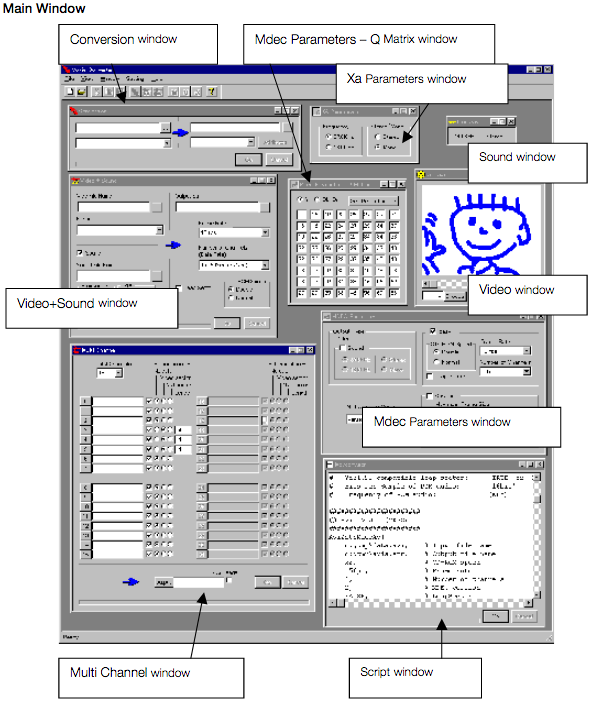
Features mc32 provides video compression and sound compression, format conversion, multiple channel creation,video/sound synthesis, script execution, and other functions.
During video compression, various parameters such as the frame rate must be specified. With mc32, theseparameters can be selected while simultaneously verifying the quality of the compressed image.
mc32 alsosupports a simple scripting language which allows batch conversion of multiple data items. Functionsmc32 performs the following five
functions: xVideo conversionxSound conversion xVideo/sound synthesisxCreation of multiple channels of dataxScript executionSupported Formatsmc32 supports the following input and output formats:
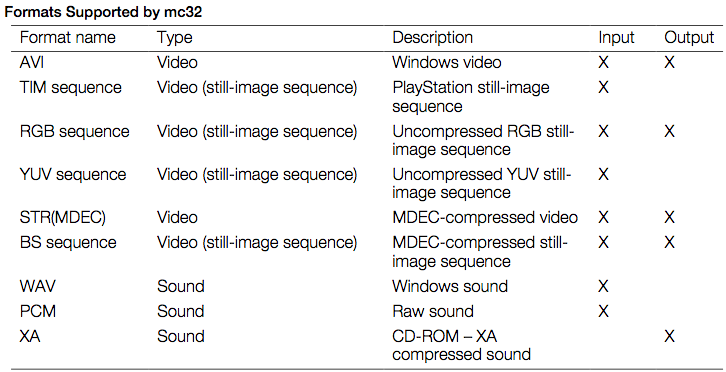
AVI
AVI is the Windows’ video format. Although several types of AVI compression are available, it is advisable touse uncompressed AVI whenever possible. The use of AVI compression may result in deterioration of thequality of MDEC-encoded images.
TIM Sequence
TIM is the PlayStation's still-image format. mc32 interprets a sequence of TIM files as a series of images.TIM files are sequenced according to the following conventions
mc32 Operation
This section describes the basic operation of mc32. For GUI-based operation, the use of each window anddialog box is described in detail below.
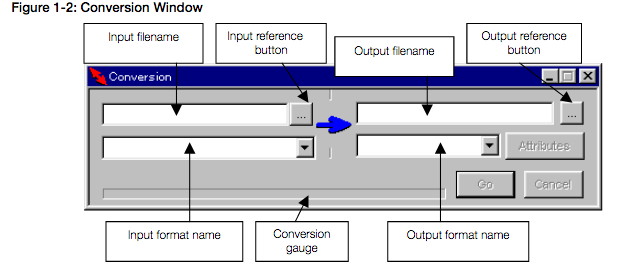
Conversion Window
he Conversion window is used to perform Video MDEC compression and sound CD-ROM XAcompression. MDEC expansion can also be performed by specifying a compressed image as input. TheConversion window can be opened from the View/Conversion menu or by using the Conversion button onthe toolbar. The Conversion window is also displayed in the Main window after mc32 is started
Specifying the Input Filename
The input filename is specified by clicking the input reference button ([...] button on the left) andopening the File Open dialog box. The input filename can also be entered directly in the Filename textbox on the left. When a file is specified with the input reference button, the specified file is displayed inthe Video window. This allows the contents of the input file to be verified prior to conversion
Specifying the Input Format
The input format is inferred from the input filename extension and is selected automatically. The inputformat can also be selected from the Format list on the left side of the window.
Specifying the Output Filename
The output filename is inferred from the input filename and the output format, and is automaticallydisplayed. The output filename can be changed by clicking the output reference button ([...] button onthe right). This will open the Save File dialog box and allow the output filename to be selected. Theoutput filename can also be entered directly in the Filename text box on the right side of the window
Specifying the Output Format
The output format can be selected from the Format list on the right side of the window
MovPack: Packs multiple streaming/audio data sets into single pack
Description
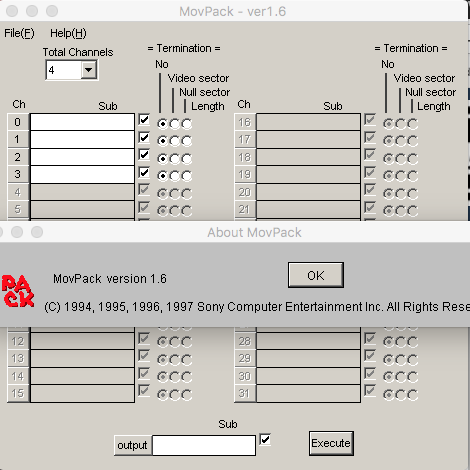
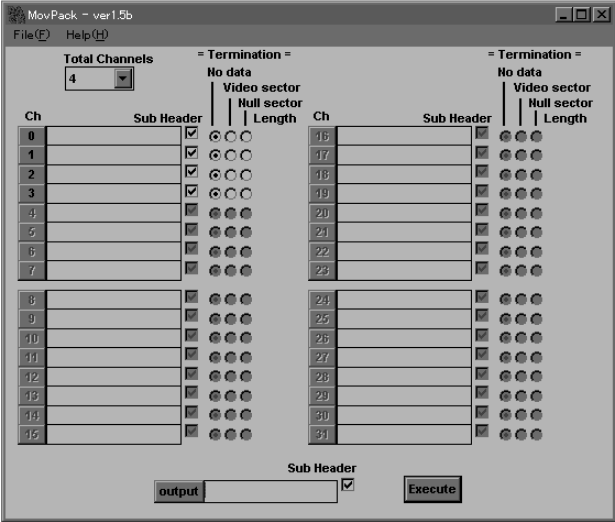
MovPack is a tool for consolidating (packing) multiple sets of streaming data or CD-ROM XA audio datainto a single package. MovPack can be used in the following situations
How to use
Please refer to the Movie Converter Tutorial for examples and specific information on usage. This sectionwill describe how to enter settings in the MovPack dialog box
[download] Download [/download] --- Movie Tools Compress

 :git: :dwarf:
The PlayStation can successively read and process data from the CD-ROM. This operation is known as “streaming”, and is commonly used to play back video and sound.
For processing video, the PlayStation uses a frame-based compressed video format that is JPEG-compatible. During playback, eachcompressed frame is expanded using the MDEC, the PlayStation's image expansion chip, and theexpanded frame is presented on the display.
In a similar manner, sound processing is performed with CD-ROM XA compression. During playback, sound is reproduced using the PlayStation’s CD-ROM XAdecoder.
Utilities called movie tools compress and format video and sound data into formats suitable for use by thePlayStation's hardware and libraries.
Conventional movie tools such as movconv and movpack areavailable for Windows 3.1 and Windows 95.
The new movie converter, mc32, which runs under Windows95 and Windows NT, integrates these functions and provides much faster image compression.The next section describes the functionality and use of mc32. The previous movie tools, movconv andmovpack, are described in subsequent sections.
- mc32.exe Compression of video and sound dataFormat conversionMultichannel interleave
- Movconv.exe Compression of video and sound dataFormat conversion (Windows 3.1/95
- Movpack.exe Multichannel interleave (Windows 3.1/95)
mc32: PlayStation Movie Converter
Features mc32 provides video compression and sound compression, format conversion, multiple channel creation,video/sound synthesis, script execution, and other functions.
During video compression, various parameters such as the frame rate must be specified. With mc32, theseparameters can be selected while simultaneously verifying the quality of the compressed image.
mc32 alsosupports a simple scripting language which allows batch conversion of multiple data items. Functionsmc32 performs the following five
functions: xVideo conversionxSound conversion xVideo/sound synthesisxCreation of multiple channels of dataxScript executionSupported Formatsmc32 supports the following input and output formats:
AVI
AVI is the Windows’ video format. Although several types of AVI compression are available, it is advisable touse uncompressed AVI whenever possible. The use of AVI compression may result in deterioration of thequality of MDEC-encoded images.
TIM Sequence
TIM is the PlayStation's still-image format. mc32 interprets a sequence of TIM files as a series of images.TIM files are sequenced according to the following conventions
mc32 Operation
This section describes the basic operation of mc32. For GUI-based operation, the use of each window anddialog box is described in detail below.
Conversion Window
he Conversion window is used to perform Video MDEC compression and sound CD-ROM XAcompression. MDEC expansion can also be performed by specifying a compressed image as input. TheConversion window can be opened from the View/Conversion menu or by using the Conversion button onthe toolbar. The Conversion window is also displayed in the Main window after mc32 is started
Specifying the Input Filename
The input filename is specified by clicking the input reference button ([...] button on the left) andopening the File Open dialog box. The input filename can also be entered directly in the Filename textbox on the left. When a file is specified with the input reference button, the specified file is displayed inthe Video window. This allows the contents of the input file to be verified prior to conversion
Specifying the Input Format
The input format is inferred from the input filename extension and is selected automatically. The inputformat can also be selected from the Format list on the left side of the window.
Specifying the Output Filename
The output filename is inferred from the input filename and the output format, and is automaticallydisplayed. The output filename can be changed by clicking the output reference button ([...] button onthe right). This will open the Save File dialog box and allow the output filename to be selected. Theoutput filename can also be entered directly in the Filename text box on the right side of the window
Specifying the Output Format
The output format can be selected from the Format list on the right side of the window
MovPack: Packs multiple streaming/audio data sets into single pack
Description
MovPack is a tool for consolidating (packing) multiple sets of streaming data or CD-ROM XA audio datainto a single package. MovPack can be used in the following situations
How to use
Please refer to the Movie Converter Tutorial for examples and specific information on usage. This sectionwill describe how to enter settings in the MovPack dialog box
[download] Download [/download] --- Movie Tools Compress
:git: :dwarf: